Chris Vizes Data visualisation and more
Exploring Salesforce Flows
There are three common types of flows
- Screen Flow - Running a process when a user interacts with something, like sending an email to them based on something they added to a form
- Record-Triggered Flow - When a record changes or is created, run some process, like notifying a sales lead after a large opportunity closes
- Autolaunced Flow - These are the flows that are triggered by request, perhaps a button in Tableau Next that adds a comment to a case. orrr a process that can be triggered by an Agent (which is why they are interesting to me)
But there are also many more types to explore.
To build a flow you work on a canvas in the Flow Builder, where you add elements that connect in a sequence to form a process.
If you get lost in any of the terminology there is a glossary here.
They have best practices with nothing too surprising here.
They also have a practice project to explore flows here which might be a useful way to learn about them.
Connecting to External Systems
The whole reason I’m interested in flows is to allow the agents I’m building to be able to action insights they find. When reading about how to integrate external systems, the tools turn to MuleSoft, which I don’t know well, but there are already built in connectors to use within the flow builder. So my understanding is there are many connectors already built to various external tools, but you can extend these options yourself by using MuleSoft.
Hands-On Building My First Integration
To get familiar with flows, I decided to take on building a flow to create a marketing ticket, in this case within Notion.
This will be useful in Tableau Next demos I build as an example of a custom flow triggered by an Agentforce Agent during conversational analytics.

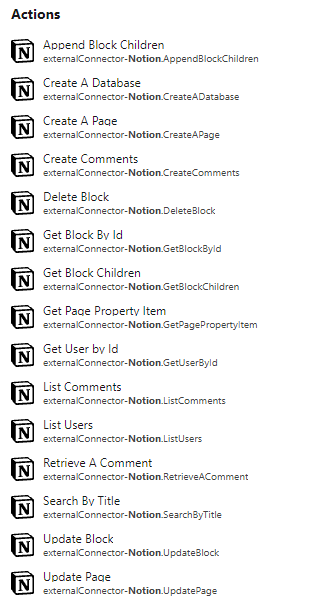
I will use the Create A Page action to add a new page to my database in Notion.
Setting Up The Notion Action
The first step is to give your action a name and set up the connection to Notion. This involves creating a token on the notion integration settings page and adding it in here.
The next part is to “Set Input Values for the Selected Action”. As far as I understand, this interface is built by when the action was developed in MuleSoft and is not user friendly at the time of writing this.
What we need to do here is provide the required pieces of information to make the API call to Notion and so this requires understanding Notions API. To add a new page to a Notion database you need the database_id. To use the API you need to know the NotionVersion. You also need to provide the required fields for your new page (or marketing ticket in my case). Every Notion page needs a name, so you have to provide the NotionPageName.
The interface to provide these fields is unintuitive and requires you to hunt through a long list for what you need. The page name for example was in:
properties -> Name -> title -> Item #1 -> text -> content.
Fortunately, you can run the action at any point to test what API call you get back, so at least validating the configuration is easy enough.
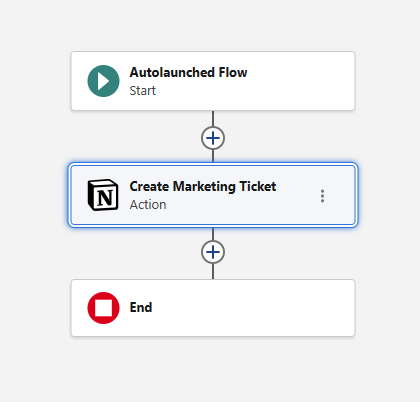
And that’s the flow
So there we have it, my first flow that simply creates a new page in a Notion database. This is however a great proof of concept and a learning experience of building within Salesforce’s flow builder. As it is an autolaunched flow, I can now include this within any Agents posssible actions and they can control what the name of the page is. There is much more to play with here and so I may be back for more soon!